实操 04 · 英文原文 · 授权全文收录
本地文件 MCP:官方安装、连接与使用教程
完整收录以 Claude Desktop 为例的官方教程:安装前准备、配置 Filesystem Server、重启、文件操作和故障排查。原文为英文。
- 原作者:
- Model Context Protocol 项目贡献者
- 核对日期:
- 2026 年 10 月 17 日
核验范围
已读取 2026-07-28 版本全文,核对 Node.js、macOS/Windows 配置、重启和排错章节;与 Filesystem Server 维护者 README 对照目录权限。已确认文档 CC BY 4.0 许可。
未安装本地服务、修改客户端配置或读取用户文件;未完成账号内连接测试。原文示例允许访问 Desktop 与 Downloads,不应直接视为适合所有人的授权范围。
完整原教程
以下保留作者原文,不改写为本站自拟步骤。 排版与相对链接已转换,未执行原文中的代码;交叉核验补充另列。转载与译文遵循 CC BY 4.0,不代表原作者为本站背书。
Connect to local MCP servers
Learn how to extend Claude Desktop with local MCP servers to enable file system access and other powerful integrations
Model Context Protocol (MCP) servers extend AI applications' capabilities by providing secure, controlled access to local resources and tools. Many clients support MCP, enabling diverse integration possibilities across different platforms and applications.
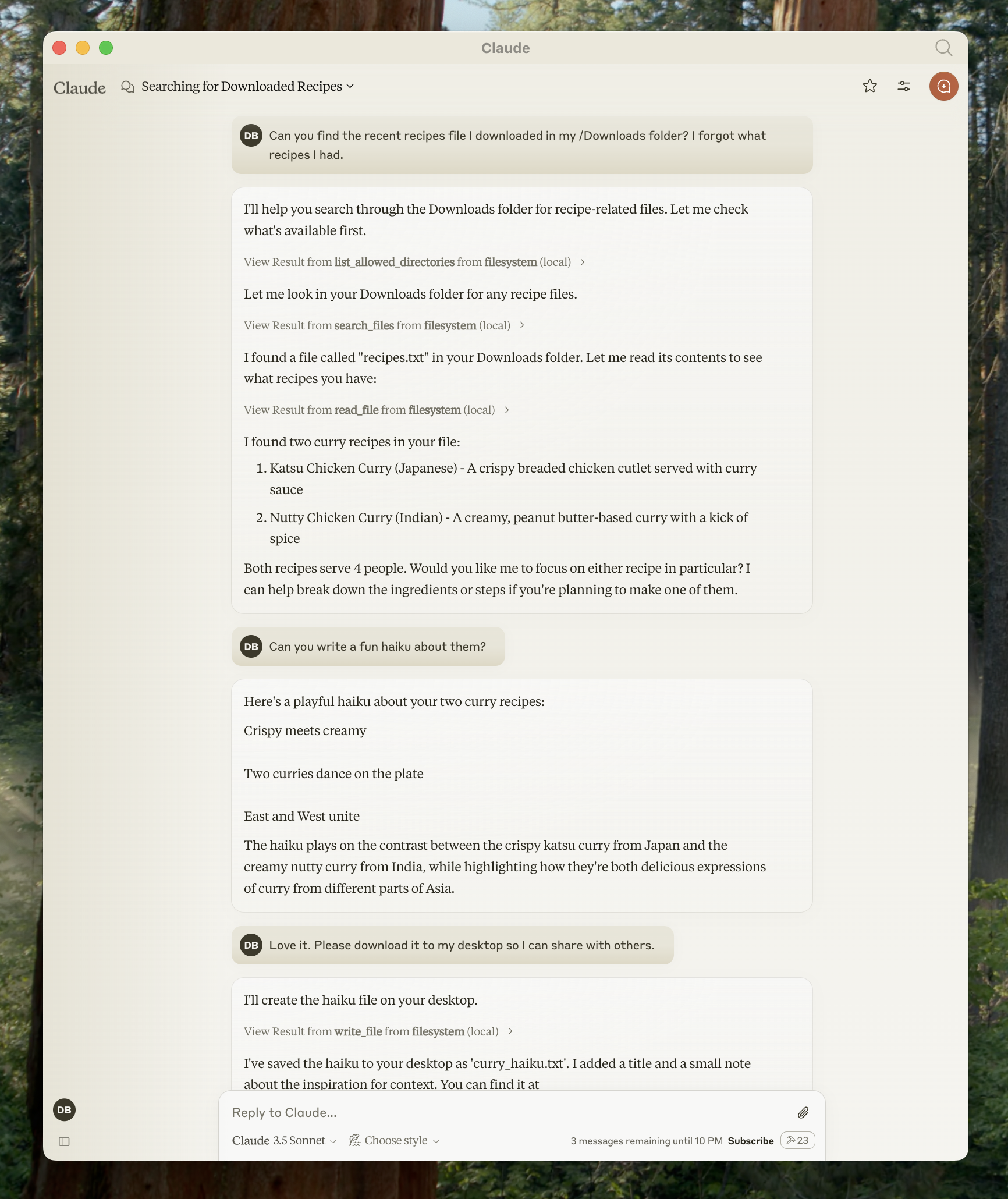
This guide demonstrates how to connect to local MCP servers using Claude Desktop as an example, one of the many clients that support MCP. While we focus on Claude Desktop's implementation, the concepts apply broadly to other MCP-compatible clients. By the end of this tutorial, Claude will be able to interact with files on your computer, create new documents, organize folders, and search through your file system—all with your explicit permission for each action.
Prerequisites
Before starting this tutorial, ensure you have the following installed on your system:
Claude Desktop
Download and install Claude Desktop for your operating system. Claude Desktop is available for macOS, Windows, and Linux.
If you already have Claude Desktop installed, verify you're running the latest version by clicking the Claude menu and selecting "Check for Updates..."
Node.js
The Filesystem Server and many other MCP servers require Node.js to run. Verify your Node.js installation by opening a terminal or command prompt and running:
node --version
If Node.js is not installed, download it from nodejs.org. We recommend the LTS (Long Term Support) version for stability.
Understanding MCP Servers
MCP servers are programs that run on your computer and provide specific capabilities to Claude Desktop through a standardized protocol. Each server exposes tools that Claude can use to perform actions, with your approval. The Filesystem Server we'll install provides tools for:
- Reading file contents and directory structures
- Creating new files and directories
- Moving and renaming files
- Searching for files by name or content
All actions require your explicit approval before execution, ensuring you maintain full control over what Claude can access and modify.
Installing the Filesystem Server
The process involves configuring Claude Desktop to automatically start the Filesystem Server whenever you launch the application. This configuration is done through a JSON file that tells Claude Desktop which servers to run and how to connect to them.
Open Claude Desktop Settings
Start by accessing the Claude Desktop settings. Click on the Claude menu in your system's menu bar (not the settings within the Claude window itself) and select "Settings..."
On macOS, this appears in the top menu bar:
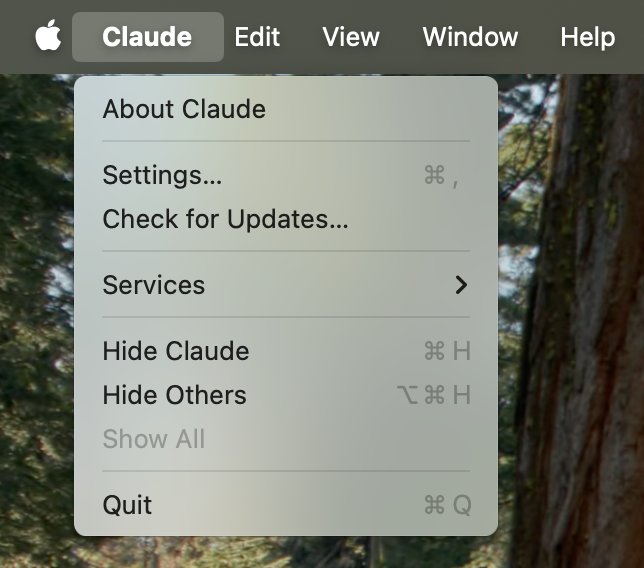
This opens the Claude Desktop configuration window, which is separate from your Claude account settings.
Access Developer Settings
In the Settings window, navigate to the "Developer" tab in the left sidebar. This section contains options for configuring MCP servers and other developer features.
Click the "Edit Config" button to open the configuration file:
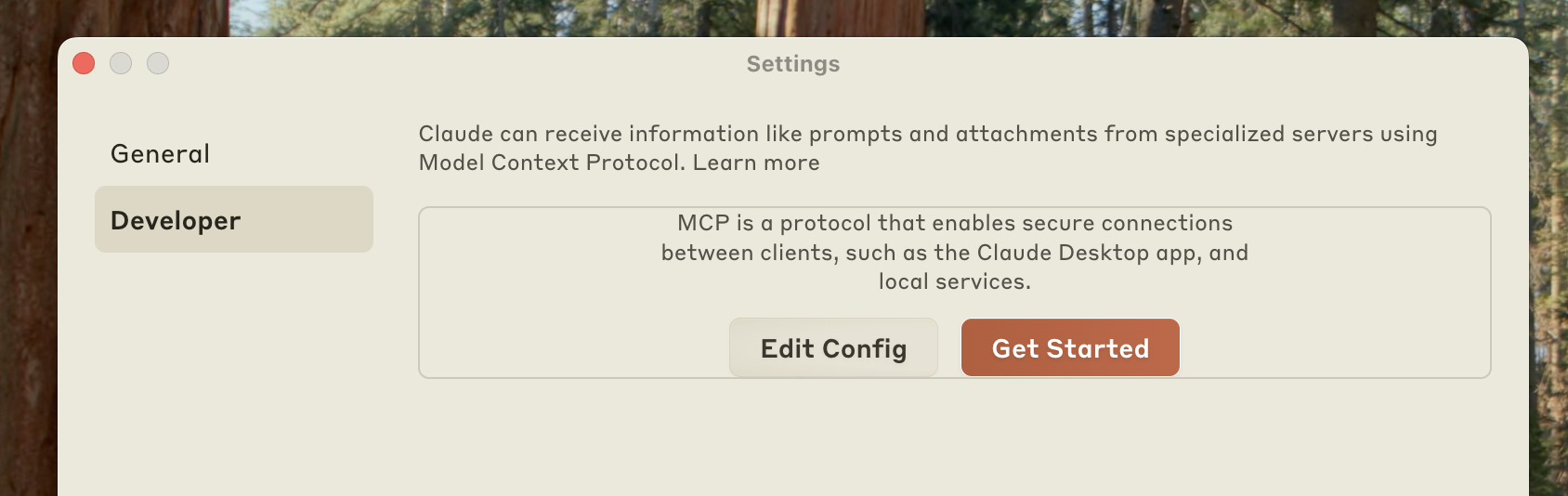
This action creates a new configuration file if one doesn't exist, or opens your existing configuration. The file is located at:
- macOS:
~/Library/Application Support/Claude/claude_desktop_config.json - Windows:
%APPDATA%\Claude\claude_desktop_config.json
Configure the Filesystem Server
Replace the contents of the configuration file with the following JSON structure. This configuration tells Claude Desktop to start the Filesystem Server with access to specific directories:
{
  "mcpServers": {
    "filesystem": {
      "command": "npx",
      "args": [
        "-y",
        "@modelcontextprotocol/server-filesystem",
        "/Users/username/Desktop",
        "/Users/username/Downloads"
      ]
    }
  }
}
{
  "mcpServers": {
    "filesystem": {
      "command": "npx",
      "args": [
        "-y",
        "@modelcontextprotocol/server-filesystem",
        "C:\\Users\\username\\Desktop",
        "C:\\Users\\username\\Downloads"
      ]
    }
  }
}
Replace username with your actual computer username. The paths listed in the args array specify which directories the Filesystem Server can access. You can modify these paths or add additional directories as needed.
Understanding the Configuration
"filesystem": A friendly name for the server that appears in Claude Desktop"command": "npx": Uses Node.js's npx tool to run the server"-y": Automatically confirms the installation of the server package"@modelcontextprotocol/server-filesystem": The package name of the Filesystem Server- The remaining arguments: Directories the server is allowed to access
Security Consideration
Only grant access to directories you're comfortable with Claude reading and modifying. The server runs with your user account permissions, so it can perform any file operations you can perform manually.
Restart Claude Desktop
After saving the configuration file, completely quit Claude Desktop and restart it. The application needs to restart to load the new configuration and start the MCP server.
Upon successful restart, click the "Add files, connectors, and more /" indicator <img src="https://mintcdn.com/mcp/cpXzQjUOzyH0mCNH/images/claude-add-files-connectors-and-more.png?fit=max&auto=format&n=cpXzQjUOzyH0mCNH&q=85&s=53acf21f6807dd5323b70b84b5d98d8a" style={{display: 'inline', margin: 0, height: '1.3em', width: 'auto'}} width="33" height="33" data-path="images/claude-add-files-connectors-and-more.png" /> in the bottom-left corner of the conversation input box:
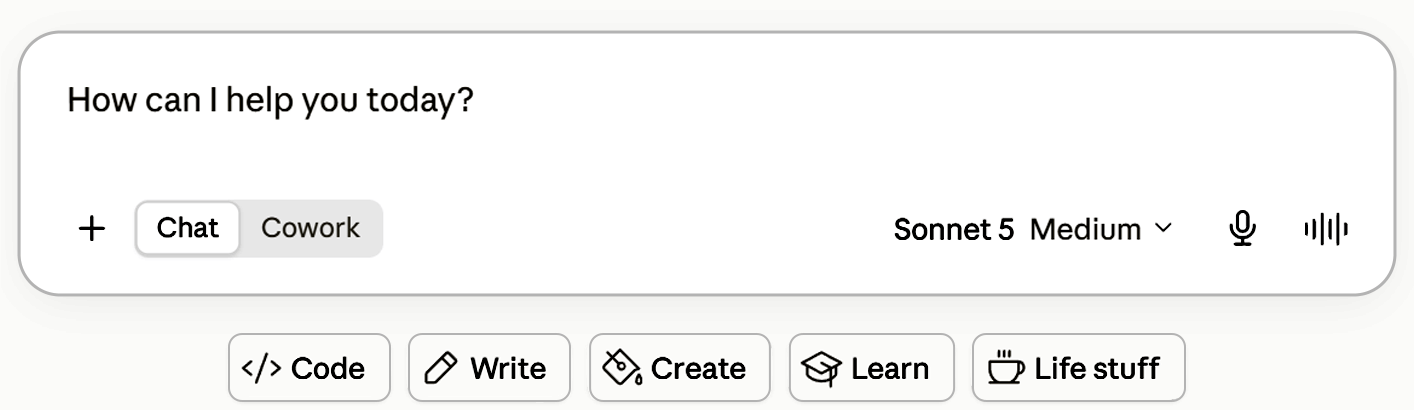
Click on this indicator, then move the mouse over "Connectors" and click "Manage connectors". Select "filesystem" from the connector list to view the Filesystem Server's available tools:
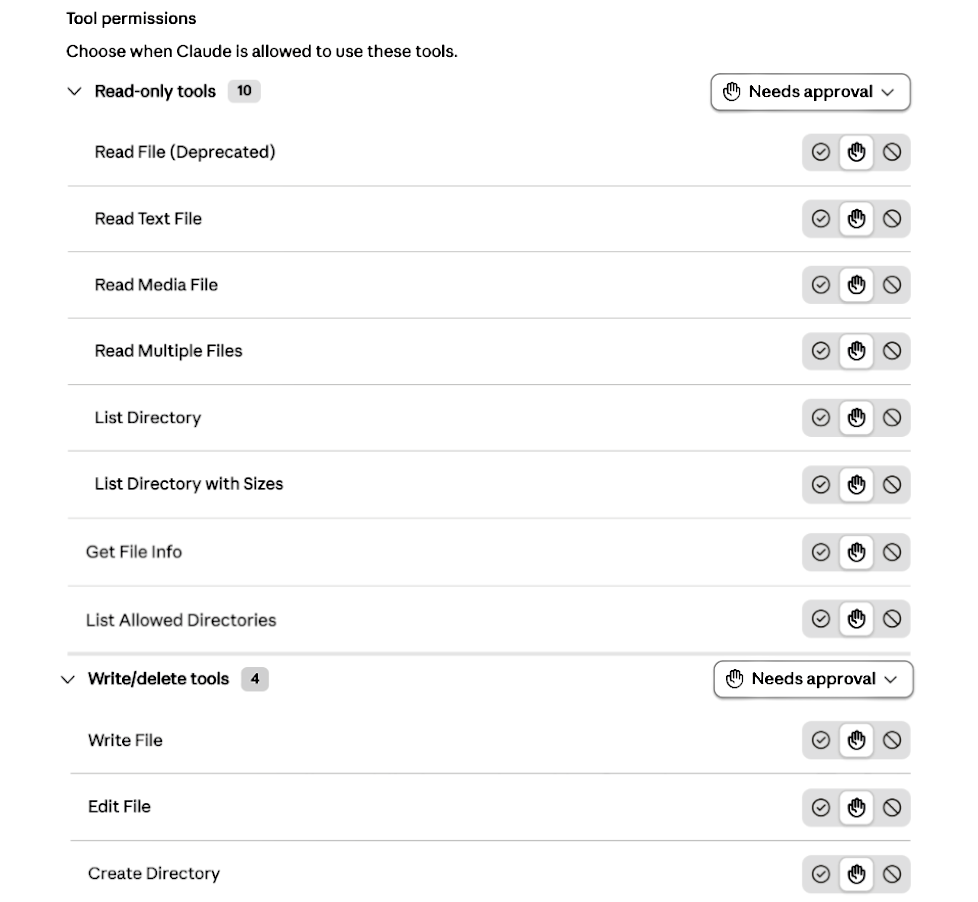
If the Filesystem Server doesn't connect, refer to the Troubleshooting section for debugging steps.
Using the Filesystem Server
With the Filesystem Server connected, Claude can now interact with your file system. Try these example requests to explore the capabilities:
File Management Examples
- "Can you write a poem and save it to my desktop?" - Claude will compose a poem and create a new text file on your desktop
- "What work-related files are in my downloads folder?" - Claude will scan your downloads and identify work-related documents
- "Please organize all images on my desktop into a new folder called 'Images'" - Claude will create a folder and move image files into it
How Approval Works
Before executing any file system operation, Claude will request your approval. This ensures you maintain control over all actions:
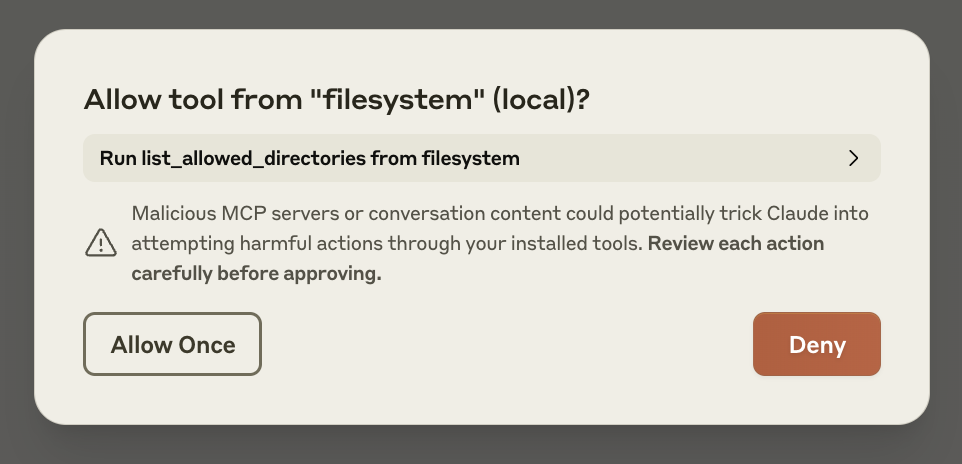
Review each request carefully before approving. You can always deny a request if you're not comfortable with the proposed action.
Troubleshooting
If you encounter issues setting up or using the Filesystem Server, these solutions address common problems:
Server not showing up in Claude / hammer icon missing
- Restart Claude Desktop completely
- Check your
claude_desktop_config.jsonfile syntax - Make sure the file paths included in
claude_desktop_config.jsonare valid and that they are absolute and not relative - Look at logs to see why the server is not connecting
- In your command line, try manually running the server (replacing
usernameas you did inclaude_desktop_config.json) to see if you get any errors:
npx -y @modelcontextprotocol/server-filesystem /Users/username/Desktop /Users/username/Downloads
npx -y @modelcontextprotocol/server-filesystem C:\Users\username\Desktop C:\Users\username\Downloads
Getting logs from Claude Desktop
Claude.app logging related to MCP is written to log files in:
macOS:
~/Library/Logs/ClaudeWindows:
%APPDATA%\Claude\logsmcp.logwill contain general logging about MCP connections and connection failures.Files named
mcp-server-SERVERNAME.logwill contain the stderr output from the named server. Stdio servers may use stderr for all their logging, so these files are not limited to errors.
You can run the following command to list recent logs and follow along with any new ones (on Windows, it will only show recent logs):
tail -n 20 -f ~/Library/Logs/Claude/mcp*.log
type "%APPDATA%\Claude\logs\mcp*.log"
Tool calls failing silently
If Claude attempts to use the tools but they fail:
- Check Claude's logs for errors
- Verify your server builds and runs without errors
- Try restarting Claude Desktop
None of this is working. What do I do?
Please refer to our debugging guide for better debugging tools and more detailed guidance.
ENOENT error and ${APPDATA} in paths on Windows
If your configured server fails to load, and you see within its logs an error referring to ${APPDATA} within a path, you may need to add the expanded value of %APPDATA% to your env key in claude_desktop_config.json:
{
  "brave-search": {
    "command": "npx",
    "args": ["-y", "@modelcontextprotocol/server-brave-search"],
    "env": {
      "APPDATA": "C:\\Users\\user\\AppData\\Roaming\\",
      "BRAVE_API_KEY": "..."
    }
  }
}
With this change in place, launch Claude Desktop once again.
npm should be installed globally
The npx command may continue to fail if you have not installed npm globally. If npm is already installed globally, you will find %APPDATA%\npm exists on your system. If not, you can install npm globally by running the following command:
npm install -g npm
Next Steps
Now that you've successfully connected Claude Desktop to a local MCP server, explore these options to expand your setup:
Explore other servers
Browse our collection of official and community-created MCP servers for additional capabilities
Build your own server
Create custom MCP servers tailored to your specific workflows and integrations
Connect to remote servers
Learn how to connect Claude to remote MCP servers for cloud-based tools and services
Understand the protocol
Dive deeper into how MCP works and its architecture
原文快照 SHA-256:386251e50038d2d0240133a24cf140e1ca760f3b004bb0c1513fa94a08dbd109
交叉核验补充
以下为本站核对说明,与上方原教程区分展示。
按原文顺序阅读
先看 Prerequisites,确认 Claude Desktop 与 Node.js;再看 Installing the Filesystem Server,依次打开设置、进入 Developer、编辑配置并完全退出后重启。Using the Filesystem Server 提供整理文件、创建文档与搜索文件的原作者示例,Troubleshooting 包含服务器不显示、日志和 Windows 路径错误。
目录配置不等于只读权限
官方服务器包含读取、写入和移动等工具。原教程允许按需调整目录;初次使用可选择只含演示文件的专用目录。维护者 README 进一步说明:客户端提供 Roots 时,会替换命令行指定的目录;list_allowed_directories 可用于检查当前允许访问的范围。这是来源对照说明,未在本次客户端中执行。
保留已有配置
原文示例展示一个完整 JSON 配置。已有其他服务器时,应核对现有 mcpServers 内容后加入相应配置,避免直接覆盖已有条目。工作目录、可执行文件和权限问题可继续查阅官方调试指南。